I'll be honest with you, I was terrified for this assignment. I have never made a movie before, and until the PowerPoint assignment I also had never worked with sound clips. Making an audio file and getting it to match with images sounded so difficult to me. Luckily Dr. Romano was correct in that Windows Movie Maker is a user friendly program.
So I read some tutorials online and watched some step-by-step video instructions to get an idea of how to make it. Then it was my mission to figure out what I could make a movie about! I finally settled on amniotic eggs because it was a concept that several of my students struggled with this past year. They had a hard time learning the membrane names and their functions so I thought this would be useful to have to show them and since it is posted on the internet they can view it whenever they need review.
Once I picked my topic, I wrote out what I was going to say. From there I looked for images that would match my main ideas. I then recorded my audio using my digital camera. I wasn't exactly sure if it would work but it ended up coming out clear.
Looking back there were just a few small changes I would have done. I entered my graphics, added my audio, set the frames to match the audio, then tried to add transitions between the slides. Next time I will definitely add transitions before matching the timing between my audio and visual. When I tried to go back and add them after it really messed up my timing and I had a difficult time getting it to flow.
My only other complication was saving the file. I am so used to going to File --> Save As and having that work. However, I learned with this project that if you do that it only saves it as a project, not as a movie. There were some additional steps I had to go back to and then I could save it as a movie to my computer. Once that was done uploading it to TeacherTube was a breeze.
My video can be found at: http://www.teachertube.com/view_video.php?viewkey=5520709f86320185c5e1 or you can watch it by clicking play below:
Overall, this assignment was a pleasant surprise! I had a lot of fun and I know my students would love to do something like this also. I think this is something that is very do-able for high school students and I think some kids would get very into it and probably even blow my video out of the water! I am excited to give my students this option for their next major project and I can't wait to see what they come up with!
Wednesday, July 25, 2007

Tuesday, July 24, 2007
Progress Update
I didn't have that much time today to work on stuff for class. However after dinner I started working on my portfolio webpage. I know I am not even finished with all of the assignments yet, but I didn't feel like working on them. I just enjoy making webpages so much and had some ideas in my head from making my WebQuest yesterday, that I figured it'd be a good time to start.
Anyways, I set up all the subpages but haven't typed any text on them yet. However, now that all of the design is overwith, adding text should be pretty easy when the time comes.
Well here is what my portfolio looks like so far:

Anyways, I set up all the subpages but haven't typed any text on them yet. However, now that all of the design is overwith, adding text should be pretty easy when the time comes.
Well here is what my portfolio looks like so far:
Assignment #7
I have absolutely zero previous experience working with WebQuests; I have never completed one before and this was my first time creating one.
It took me a while to figure out exactly what a webquest is. I read all the tutorials, looked at examples from former students, and even searched the net to find some more science and high school examples.
Once I figured out the direction I needed to go, it was difficult getting started and choosing a topic. I was having a difficult time coming up with a new concept so I decided to look at things I taught this previous school year and thought about how I could modify them to fit into this new form of technology. I have had my students in previous years research genetic disorders but my guidelines & expectations were printed out on worksheets. I figured that research project could be given a new facelift and perhaps draw in more student interest if I turned it into a WebQuest. I think students would enjoy completing the assignment in the form of a webquest and it definitely saves paper and solves the problem for students who tend to misplace handouts.
I am looking forward to trying this out this year and getting some student feedback. I have even thought about changing the assignment from a written paper and presentation to having the students create their own brochures or powerpoints and present the topics that way. I am still deciding about that but right now I have lots of ideas.
Also, I found that I had an advantage with this assignment because I am already familiar with making webpages. As a result, the hardest part of the assignment was coming up with the actual Quest sections (intro, task, process, resources, and evaluation).
Overall, I am very pleased with the way it came out. I am still unsure as to whether I should have included graphics or other factors, but I think as I see more examples and experiment more with WebQuests these things will come more naturally to me.
To see my webquest: visit http://www.missabrams.com/Webquest_Intro.html

It took me a while to figure out exactly what a webquest is. I read all the tutorials, looked at examples from former students, and even searched the net to find some more science and high school examples.
Once I figured out the direction I needed to go, it was difficult getting started and choosing a topic. I was having a difficult time coming up with a new concept so I decided to look at things I taught this previous school year and thought about how I could modify them to fit into this new form of technology. I have had my students in previous years research genetic disorders but my guidelines & expectations were printed out on worksheets. I figured that research project could be given a new facelift and perhaps draw in more student interest if I turned it into a WebQuest. I think students would enjoy completing the assignment in the form of a webquest and it definitely saves paper and solves the problem for students who tend to misplace handouts.
I am looking forward to trying this out this year and getting some student feedback. I have even thought about changing the assignment from a written paper and presentation to having the students create their own brochures or powerpoints and present the topics that way. I am still deciding about that but right now I have lots of ideas.
Also, I found that I had an advantage with this assignment because I am already familiar with making webpages. As a result, the hardest part of the assignment was coming up with the actual Quest sections (intro, task, process, resources, and evaluation).
Overall, I am very pleased with the way it came out. I am still unsure as to whether I should have included graphics or other factors, but I think as I see more examples and experiment more with WebQuests these things will come more naturally to me.
To see my webquest: visit http://www.missabrams.com/Webquest_Intro.html
Monday, July 23, 2007
Assignment #4
Last night I completed my PowerPoint Game for assignment #4. I use PowerPoint often in my classroom however I have never tried making a presentation with non-linear links, sounds, animations, or notes… so there was a lot for me to learn from this lesson and the tutorials!
My presentation is set up with the first few slides going over main concepts, followed by a non-linear multiple choice quiz to review. The final slide has external links to the internet for further exploration and review.
I am pleased with my final product but now that I am familiar with it I think I could do even better in the future. I plan to incorporate some of the new features I learned into my current presentations.
However, while I do see myself continuing to use PowerPoint and some of the additional features, I honestly do not see myself using it for the purpose of a review game as I did in this assignment. Our school has a program called Turning Point in which the program makes similar games. I find the Turning Point software to be easier/faster to use to make quizzes compared to this method! It is also more interactive for each student. I plan to research more into the features of the Turning Point technology and write about it for my Technology Review Wiki. I'll let you know once I have that completed.

My presentation is set up with the first few slides going over main concepts, followed by a non-linear multiple choice quiz to review. The final slide has external links to the internet for further exploration and review.
I am pleased with my final product but now that I am familiar with it I think I could do even better in the future. I plan to incorporate some of the new features I learned into my current presentations.
However, while I do see myself continuing to use PowerPoint and some of the additional features, I honestly do not see myself using it for the purpose of a review game as I did in this assignment. Our school has a program called Turning Point in which the program makes similar games. I find the Turning Point software to be easier/faster to use to make quizzes compared to this method! It is also more interactive for each student. I plan to research more into the features of the Turning Point technology and write about it for my Technology Review Wiki. I'll let you know once I have that completed.
Wednesday, July 18, 2007
Assignments #3 and #8
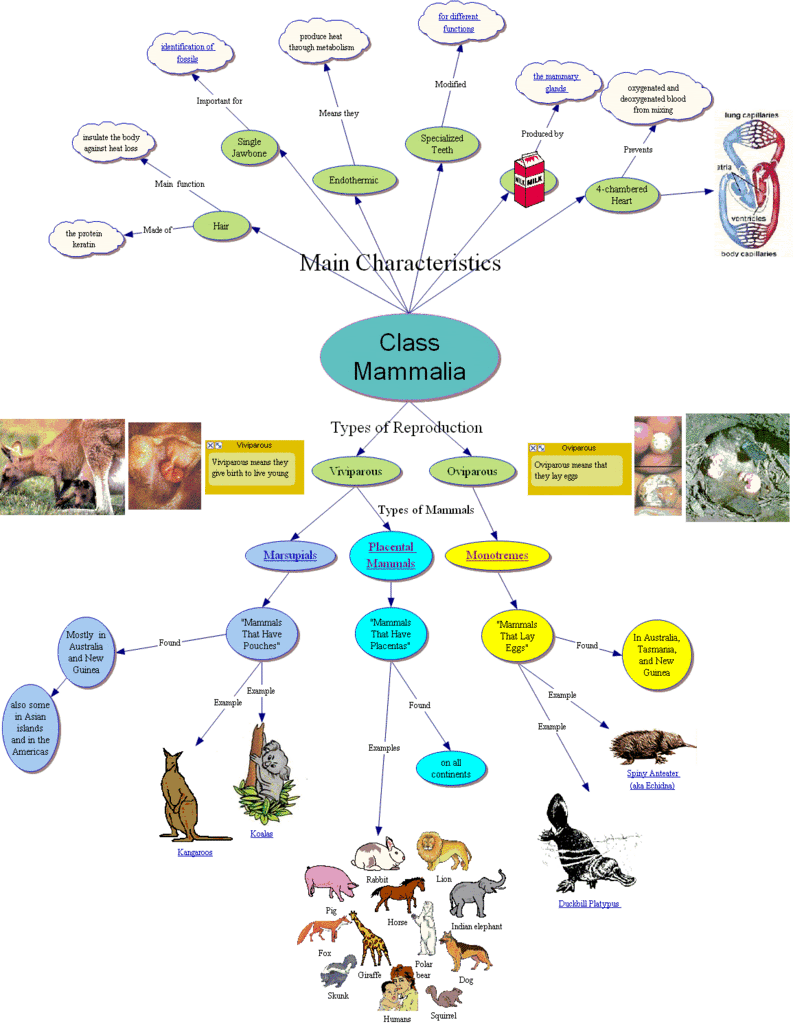
For my first time using the Inspiration Program, I found it easy to use and I was not afraid to experiment with clicking buttons to find out what each did. I used Inspiration to make a graphic organizer of the main concepts covered by my Mammal notes and lecture. The organizer also contains links so that students would be able to go to different websites to get more information on some of the topics.
I thought it was great that the program had an easy way to turn the Inspiration creation into a graphical image. It took me a little bit of time to figure out what buttons to hit to accomplish this. Normally if I want to turn something like this into an image I will just take a screen capture of it. I was slightly worried because my image was larger than the screen so I knew I would not be able to using my normal method. However I used google to look up how to turn Inspiration files into gif images. The built in method (File --> Export --> Graphics Files) was so easy and much more efficient.
Now that I have gotten the hang of the program, I feel that creating another graphic organizer could be done even quicker. I think this is definitely a tool that could be used to help students, especially those who learn best visually or hands-on. I think students of all ages could use this program.

I also completed the SpreadSheet and Database assignment. While it was time consuming, it was very informative. I had some knowledge of spreadsheets from a previous secretarial job, however now I feel like I have learned a lot more. I previously knew how to type in SUM calculations but I did not realize there were other/easier methods to accomplish the same thing. I liked that this program showed you all the methods, then lets you choose which you like best.
I also really liked the step-by-step tutorial guide, however it would have been easier to print out (if it wasn't 67 pages!) because it got kind of annoying having to flip back and forth between pages and remember what to type.
Overall, I learned a lot from this assignment. I do not send out letters to parents in my class very often because email tends to be a lot easier and doesn't require buying stamps :) However I am advisor for our National Honor Society and the database/letters would be a great way to send out personalized invitations and acceptance letters!

Well I have been working my butt off these past two days to get all of these assignments done. I figured I should try to get ahead since I am going out of town this weekend and will be packing and moving all of next week. Might be a couple of days until I post again...
I thought it was great that the program had an easy way to turn the Inspiration creation into a graphical image. It took me a little bit of time to figure out what buttons to hit to accomplish this. Normally if I want to turn something like this into an image I will just take a screen capture of it. I was slightly worried because my image was larger than the screen so I knew I would not be able to using my normal method. However I used google to look up how to turn Inspiration files into gif images. The built in method (File --> Export --> Graphics Files) was so easy and much more efficient.
Now that I have gotten the hang of the program, I feel that creating another graphic organizer could be done even quicker. I think this is definitely a tool that could be used to help students, especially those who learn best visually or hands-on. I think students of all ages could use this program.
I also completed the SpreadSheet and Database assignment. While it was time consuming, it was very informative. I had some knowledge of spreadsheets from a previous secretarial job, however now I feel like I have learned a lot more. I previously knew how to type in SUM calculations but I did not realize there were other/easier methods to accomplish the same thing. I liked that this program showed you all the methods, then lets you choose which you like best.
I also really liked the step-by-step tutorial guide, however it would have been easier to print out (if it wasn't 67 pages!) because it got kind of annoying having to flip back and forth between pages and remember what to type.
Overall, I learned a lot from this assignment. I do not send out letters to parents in my class very often because email tends to be a lot easier and doesn't require buying stamps :) However I am advisor for our National Honor Society and the database/letters would be a great way to send out personalized invitations and acceptance letters!
Well I have been working my butt off these past two days to get all of these assignments done. I figured I should try to get ahead since I am going out of town this weekend and will be packing and moving all of next week. Might be a couple of days until I post again...
assignments #1 and #2
I found the readings for these assignments interesting...

- It is so true that most companies would collapse if computers were removed, however schools would not notice much of a difference. This does show that teachers are not using technology as much or in the ways they should. Personally, I know at my school very few teachers use any technology for instruction. I am one of the few and I have found that students are more interested when the lesson is high tech.
- The whole concept of talking word processors is new to me but sounds like something more teachers should be using. Even at the high school level I think this could be helpful to students who are on IEPs.
- The visual literacy section introduced a lot of new terminolgy but was not as helpful in how to apply such factors to the assignments. I guess what I took from it was how to make things more visually attractive and eye-catching. It was helpful in showing how to make things stand out by using colors, textures, lines, or other elements.
In order to make my newsletter I read through the various tutorials. Some of the information I had known from typing papers in the past. However, some things were new to me. One thing I learned was about the Tab function. In the past I have used the tab key mainly to indent paragraphs. I had no idea you could change the tab settings to get different tab alignments. I was amazed when I found out you could even have different tabs on one line. When I type worksheets for my students I put the assignment title, name, period, etc. spaced across the top of the page. In the past I have always had to press spacebar to position each where I wanted it to go. I definitely see using this tab function instead and it will make it much faster and neater.
It was fun to use Word to make a newsletter because this was something I have not really done before. I decided to make the first page of my syllabus for this assignment because I think it will be more eye catching to the students and they will be more likely to read through the rules and remember things from the paper. However I made the newsletter in color and our school can only print black and white, so I may need to play around with it a little. But I figure I can at least print out one version in color, enlarge it, and hang it in the room as a visual reminder for students.
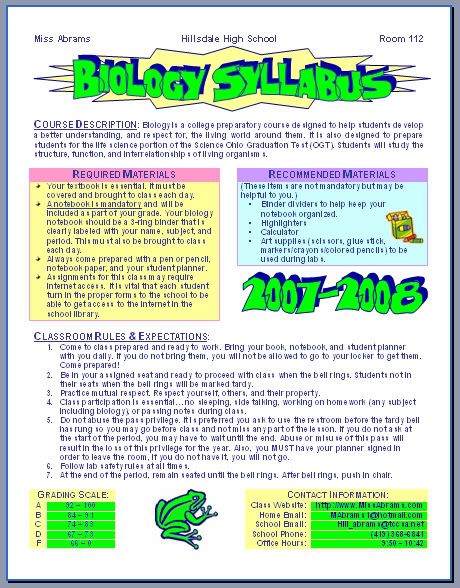
This assignment got me to thinking of how I can use this in other ways in my classroom. I already have a class website for students and parents to use. But I also thought I could make a classroom newsletter and send it out via email rather than wasting paper. That way it is more likely that the parents will actually see it (students tend to throw papers out instead of take them home to show parents) and I can make it in color without having to worry about printing costs.
Subscribe to:
Comments (Atom)
